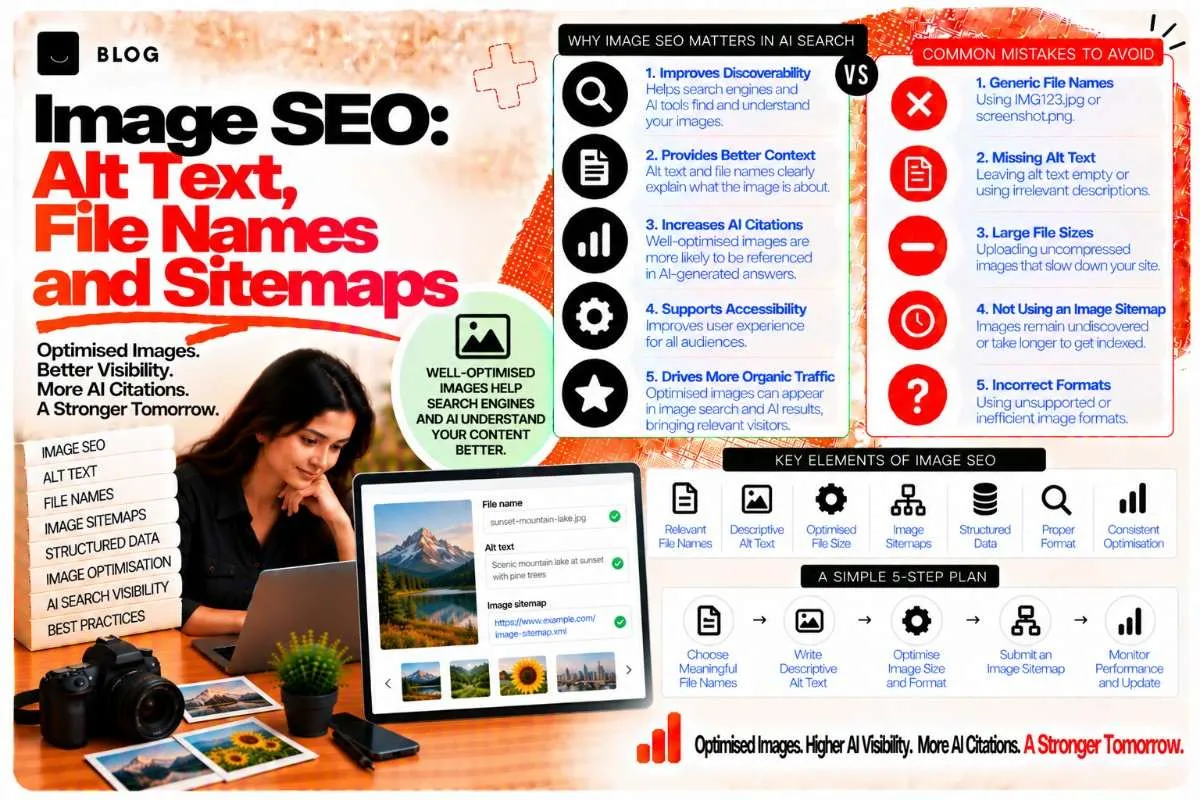
Image SEO: Alt Text, File Names and Sitemaps
Images carry more meaning than many sites give them credit for. A product photo can answer a search for a specific model. A chart can be cited by an AI system. A service photo can appear in image results and send a visitor to the page it sits on. Yet most sites treat images as decoration: uploaded at full size, named IMG_4821.jpg, and left with no alt text or a placeholder description.
Image SEO is the discipline of making images understandable to search engines and useful to people who cannot see them. It covers the text attached to images, the file names, the formats and sizes that affect loading, and the sitemaps that help search engines find image files. It is a practical, unglamorous area, and the rules are simpler than most of the advice around them.
This guide covers each part, how to apply it without damaging page performance, and how to check the work.
What image SEO can and cannot do
Image SEO helps search engines understand what an image shows and what page it belongs to. It can bring images into image search, support the page's relevance for its topic, and make content accessible to screen reader users. It does not turn a poor page into a strong one, and it does not replace good writing around the image.
The most important reasons to do it well are accessibility, clarity and performance. Search benefits follow from those, but they are not the only reason.
Step 1: Write descriptive alt text
The alt attribute describes an image for screen readers, for when an image fails to load, and for search engines. Good alt text says what the image shows and why it matters in context.
Compare:
- Weak: alt="image" or alt="service"
- Weak: alt="SEO agency India SEO agency Bhopal best SEO company"
- Good: alt="Team reviewing a Search Console performance report on a laptop"
The last example describes the scene and fits the context of the page. It contains no keyword stuffing and no false claim.
Guidelines:
- Describe the image's content and purpose in one short phrase or sentence.
- Use the words a reader would use, not a list of search terms.
- Include a relevant keyword only where it fits naturally in the description.
- Leave alt text empty for purely decorative images, using alt="", so screen readers skip them.
- Do not begin with "image of" or "picture of", since screen readers already announce the image.
Alt text for a chart or diagram should convey the key finding, not just the title. If a chart shows traffic rising over six months, the alt text should say so, and the full data can appear in the text or a table.
Step 2: Name files descriptively
File names are a minor signal, but they cost nothing and help when someone searches image results or the file is shared.
Compare:
- Weak: IMG_4821.jpg
- Weak: final-final-v3.png
- Good: search-console-performance-report.webp
Use lowercase words separated by hyphens, describe the subject, and avoid stuffing several keywords into one name. Keep the name consistent with the image's content, and rename files before upload, because changing a name later breaks links to the old address and requires redirects.
Step 3: Choose sensible formats and sizes
Image weight is one of the most common causes of slow pages, which affects Core Web Vitals and user experience. Choose formats and sizes deliberately.
- Use modern formats where your platform supports them. WebP and AVIF usually give smaller files than JPEG or PNG at similar quality. Provide a fallback for older browsers where needed.
- Resize to the largest size the layout needs, not the size the camera produced. A 5,000-pixel photo shown at 800 pixels wide wastes bandwidth.
- Compress with a quality setting that keeps the image clear at the displayed size. Check the result visually, not just the file size.
- Use PNG or SVG for graphics with flat colours, text or transparency, where JPEG artefacts would show.
- Serve responsive images with srcset and sizes, so phones receive smaller files than desktop screens.
The Core Web Vitals post covers how image loading affects the largest contentful paint and layout stability.
Step 4: Set dimensions to prevent layout shift
Images without declared width and height can shift the layout when they load, which harms the stability of the page. Set width and height attributes, or use CSS aspect ratio, so the browser reserves space before the image arrives.
This is one of the simplest performance fixes available, and it affects both user experience and the layout stability metric.
Step 5: Use lazy loading without hiding content from crawlers
Lazy loading defers images that sit below the visible area until the user scrolls near them. Used well, it speeds up the first view of the page.
The risk lies in implementation. Lazy loading should use the native loading="lazy" attribute on images below the fold. Do not lazy load the main image at the top of the page, because that delays the most important visual and can hurt loading metrics.
Check that:
- Images use real <img> elements with src or srcset values in the markup, not only as background images or values set by scripts.
- The image URL is present in the HTML, so crawlers can discover it without running custom code.
- Images that matter for the page are not hidden behind tabs or interactions that do not load them.
The JavaScript rendering post covers the wider issue of content that depends on scripts.
Step 6: Place images near relevant text
Images are understood partly through the text around them. An image placed beside a paragraph about its subject gives search engines context. An image dropped in with no surrounding explanation gives them very little.
Add a caption where it helps the reader, especially for charts, diagrams and product photos. Captions are visible text and are often read more closely than alt text.
Step 7: Consider image sitemaps for image-heavy sites
An image sitemap lists image URLs and the pages they belong to, so search engines can discover them more easily. It is most useful for sites where images are central to the content: ecommerce catalogues, photography portfolios, real estate listings, and sites that rely on image search.
Images embedded in pages are usually found through normal crawling. For most content sites, an image sitemap adds little. Use one where images are numerous, where they load through scripts, or where they sit on pages that are hard to crawl.
Keep the sitemap accurate. List only canonical image URLs, and remove images that have been deleted or replaced. The indexing and sitemaps post covers the general sitemap rules.
Step 8: Protect image rights and attribution
Use images you own or have licensed. Stock or client images should be used within their licence terms. Unlicensed images create legal risk and can be removed from search, which removes the benefit of the optimisation.
Where a photo is used in an editorial context, record its source and any credit required. Where you are working with a client's photographs, confirm they have the right to publish them.
Step 9: Check images in search and on mobile
Once the work is live, look at how images behave in practice.
- Search Console image reports show impressions and clicks from image search, which indicates whether images are being discovered and used.
- Mobile view shows whether images are the right size and cropped sensibly.
- Page speed tests show whether image weight remains a problem after changes.
- A manual review of alt text on key pages, checking that it describes the image and reads well with a screen reader.
Review images when a page is updated, not just at launch. Replacements often arrive without alt text or with the old file name.
Common image SEO mistakes to avoid
Keyword-stuffed alt text. It reads badly, harms accessibility, and offers little benefit.
Generic file names. IMG_4821.jpg tells search engines nothing.
Oversized uploads. Serving a 4,000-pixel image into an 800-pixel slot slows the page.
Missing dimensions. Layout shift damages the user experience.
Lazy loading the hero image. This delays the most important visual.
Images that load only through scripts. Crawlers may not see them.
Frequently asked questions
It helps search engines understand the image and its context, and it supports image search. Its main value is accessibility and clarity. Treat it as description, not as a ranking lever.
Every meaningful image should. Purely decorative images should have an empty alt attribute so they are skipped by screen readers.
It is a small signal and costs nothing to get right. Focus on alt text and surrounding content first.
Not usually for a standard content site. It helps most when images are central to the site, are numerous, or are hard to discover through normal crawling.
Usually smaller at similar quality, and widely supported. Provide a fallback where your platform requires one.
Some do, to varying degrees. Alt text and nearby text give them a clear description, and that is the reliable way to make an image's meaning available. Behaviour varies by system, so do not assume any single approach.
Ready to build what's next?
Tell us where you're headed. We'll come back with a plan to get there.
Book an intro call