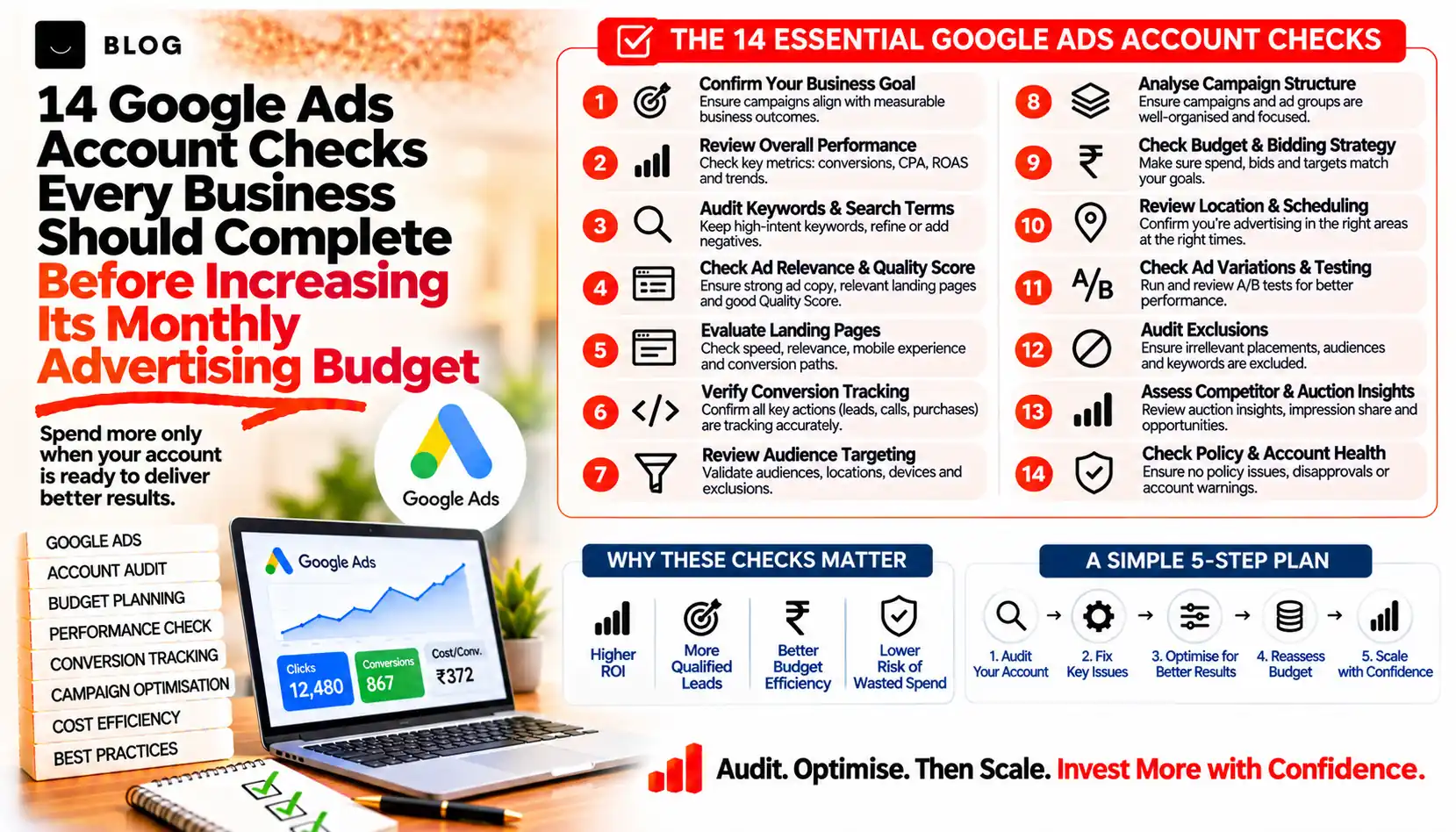
14 Google Ads Account Checks Every Business Should Complete Before Increasing Its Monthly Advertising Budget
The results from a Google Ads account look acceptable, so the next idea is obvious: spend more and get more. Sometimes that works. Often it simply scales whatever problems already exist: a conversion count that includes junk, search terms that have nothing to do with the service, a location setting that reaches the wrong people, or ads that send visitors to a page that does not convert.
Increasing the budget on a leaking account increases the leak. A short audit first is cheaper than finding out after a larger bill.
This guide covers 14 checks grouped into five areas: measurement, traffic quality, bidding and budget, ads and landing pages, and account controls. Each explains how to check, why it matters and what to avoid. The checks apply to Search-led lead generation for service businesses, and you can complete most of them in an afternoon.
What an account check can and cannot do
It can show whether your reported results are trustworthy, whether budget is actually the limiting factor and where money is being wasted today. That tells you whether more spend is likely to help.
It cannot guarantee that a larger budget will produce proportionally more leads. Auction conditions, competition, seasonality and your sales process all affect results, and platform interfaces change, so confirm details in your own account and in Google Ads Help before acting.
Part 1: Can you trust the measurement?
1. Conversion tracking records real business actions
How to check: Open your conversion actions and confirm each one is firing, using a test submission and Google's tag testing tools. Confirm the main actions match what your business values: qualified form submissions, calls, bookings or purchases.
Why it matters: Google's Smart Bidding guidance says automated bidding relies on conversion tracking data, and that inaccurate data can cause swings in volume, cost per acquisition or return on ad spend.
Avoid: Counting page views, scrolls or button clicks as primary conversions. They flood the system with low-intent signals.
2. Primary and secondary conversion actions are set deliberately
How to check: Review which actions are marked primary, since those are used for bidding, and which are secondary, used for observation. Check how each action is counted. For lead generation, counting one conversion per click is usually more sensible than counting every submission.
Why it matters: Bidding optimises toward whatever you tell it counts.
Avoid: Duplicate actions, such as a form event imported from analytics and also tagged directly, that double-count the same lead.
3. Calls and offline outcomes are captured
How to check: If phone calls matter, confirm call tracking from ads and from your website number. If leads become customers later, check whether you can import qualified leads or sales back into the account.
Why it matters: A lead and a customer are not the same thing. Optimising to the first without feedback from the second can reward cheap, low-quality enquiries.
Avoid: Treating every call as equal. Short, irrelevant calls inflate results.
4. Reported conversions match reality
How to check: Compare last month's Google Ads conversions with enquiries recorded in your CRM, inbox and phone logs.
Why it matters: If the account reports 60 leads and your team can find 35, you are about to scale a number that is not real.
Avoid: Only comparing Google Ads with Google Analytics, which can share the same tagging flaws.
Part 2: Is the traffic relevant?
5. The search terms report has been reviewed
How to check: Open the search terms report and read the queries that triggered your ads over the last 30 to 90 days. Sort by cost and look for irrelevant, informational or job-seeker searches.
Why it matters: The report shows the actual searches behind your spend. Google lets you add terms from it as negative keywords, and by default they are added as exact match.
Avoid: Assuming a negative keyword blocks variants. Google's help pages note that negative keywords do not match close variants, so plurals and misspellings may need their own entries.
6. Location settings match where customers are
How to check: Review the targeted locations and the location options in campaign settings. Google's default and recommended option is "Presence or interest", which can also reach people outside your area who have shown interest in it. "Presence" limits ads to people in or regularly in the area.
Why it matters: A local service that cannot serve people outside its area may prefer "Presence". Check the location report for clicks from places you do not serve.
Avoid: Switching settings without looking at the data first. Test the change and compare results.
7. Keywords and match types reflect intent
How to check: List your keywords by match type and look at the search terms each one triggers. Check that high-spend keywords relate to buying intent rather than research.
Why it matters: Broad terms can reach a wide range of searches, which can help or waste money depending on your conversion data and negatives.
Avoid: Leaving a single broad keyword to carry most of the budget without reviewing what it matches.
8. Network, device and schedule settings are intentional
How to check: Review network settings for Search campaigns, performance by device and by hour or day. Confirm your ads run when someone can answer calls and forms.
Why it matters: Enquiries received when nobody replies are often lost.
Avoid: Pausing a device or time slot based on a few days of data.
Part 3: Is budget really the constraint?
9. Impression share lost to budget versus rank
How to check: In campaign columns, add Search lost impression share (budget) and Search lost impression share (rank). Look at the figures for your best-performing campaigns.
Why it matters: If you are losing most impressions to budget while results are good, more budget may help. If you are losing them to rank, the problem is ad quality, relevance or bids, and money alone will not fix it.
Avoid: Increasing budget because impressions are low without checking why.
10. The bidding strategy fits your data and goals
How to check: Check the strategy for each campaign and how many conversions it has recorded recently. Look at when the strategy last changed.
Why it matters: Automated strategies need reliable conversion data to learn from. Google also advises avoiding bid adjustments with Smart Bidding, since the strategy sets bids to meet your goal.
Avoid: Changing the strategy, targets and budget at the same time, which makes it impossible to tell what caused any change.
11. Campaign structure separates different intent
How to check: Check that brand searches are separate from non-brand, and that distinct services or locations have their own campaigns or clear ad groups.
Why it matters: Brand terms usually convert well and can hide the weak performance of non-brand terms in a combined report.
Avoid: Judging overall results by one blended cost per lead.
Part 4: Do ads and pages convert?
12. Ads and assets are relevant and approved
How to check: Review ad strength and policy status, and confirm assets such as call, location and sitelink extensions are present and accurate. Check that headlines match the service being searched.
Why it matters: Relevant ads attract the right clicks and help control cost.
Avoid: Using one generic ad for every service, or claims you cannot support, such as "best" or "guaranteed" results.
13. Landing pages match the ad and make enquiry easy
How to check: Click your own ads on a phone. Does the page match the promise, load quickly and show a clear way to enquire? Compare conversion rates across landing pages.
Why it matters: If the page does not convert, extra budget buys more visitors who leave. The service website checklist post in this series covers the page-level fixes.
Avoid: Sending all ads to the homepage.
Part 5: Do you control the account?
14. Recommendations, auto-apply settings and access are reviewed
How to check: Open the Recommendations page and its auto-apply settings. Review the change history for edits you did not make, and confirm who has access and that billing and ownership are in your name.
Why it matters: Google describes the optimization score as an estimate of how well the account is set up to perform. It is not a measure of your business results, and recommendations may not fit your goals. If you opt in to auto-apply, Google can change settings on your behalf.
Avoid: Chasing a 100 per cent score, or letting an agency or freelancer hold the only admin login.
What the checks should tell you about budget
Use the results to decide whether to raise the budget, fix something first or hold steady. The step sizes below are practical guidelines, not Google rules.
| What you find | What to do |
|---|---|
| Conversion tracking is wrong or does not match real enquiries (checks 1 to 4) | Fix tracking before any budget change |
| A large share of spend goes to irrelevant searches or places (checks 5 to 8) | Add negatives, correct settings and re-measure, then reconsider budget |
| Good results and high impression share lost to budget (check 9) | Raise the budget in modest steps, for example 10 to 20 per cent, and review after a full conversion cycle |
| High impression share lost to rank (check 9) | Improve ad relevance, landing pages and bidding before adding budget |
| Leads arrive but few become customers (checks 3 and 13) | Review lead quality, form questions and sales follow-up before scaling |
| Results are good only on brand searches (check 11) | Judge non-brand performance separately before spending more |
Common mistakes to avoid
Doubling the budget overnight. Large jumps make it hard to see what changed and can disrupt automated bidding. Increase gradually and give each step time.
Judging results from a few days. Leads take time to turn into sales, and results fluctuate. Compare equivalent periods.
Accepting every recommendation. Recommendations are suggestions based on general patterns and may not match your goals. Apply what makes sense and dismiss the rest.
Trusting the platform's numbers alone. Always compare with your CRM, calls and sales.
Changing several things at once. Alter one major setting at a time so you can tell what caused a change.
Conclusion
More budget is a decision, not a default. If the numbers are reliable, the traffic is relevant, budget is clearly the constraint and the website converts, extra spend has a fair chance of working. If any of those is missing, fix it first.
Set aside an afternoon, work through the 14 checks and write down what you find. That record will tell you whether to scale, repair or wait.
If you would like an independent review, Crescent Digital Solutions can audit your Google Ads account, check tracking and search terms against your real enquiries and advise on a budget plan. We work across performance marketing, web development and SEO, so we can look at the ads and the page they lead to together.
Frequently asked questions
It is a structured review of the website details that affect whether search systems and AI assistants can reach, understand and accurately describe your business. It covers crawl access, service pages, business facts, proof, structured data and monitoring.
Google says its AI features need no extra machine-readable files, AI text files or special schema.org markup, and that structured data should match the visible page. The OpenAI and Perplexity crawler documentation we reviewed does not ask for one either.
That is a business decision about model training, not about search visibility. OpenAI documents GPTBot and OAI-SearchBot as separate robots.txt settings, and says sites that opt out of OAI-SearchBot will not be shown in ChatGPT search answers.
Run a fixed list of customer questions once a month and record whether you are named, how you are described and which sources appear. Answers vary between sessions, so look for patterns rather than single results.
It varies. OpenAI and Perplexity say robots.txt changes can take up to about 24 hours to be reflected, while Google says recrawling can take anywhere from several days to several months depending on the page. None of them guarantee a mention.
Ready to build what's next?
Tell us where you're headed. We'll come back with a plan to get there.
Book an intro call